시놀로지 도커에 penpot (figma 대안) 디자인툴 설치하기

 우선 penpot과 figma가 무엇이냐?
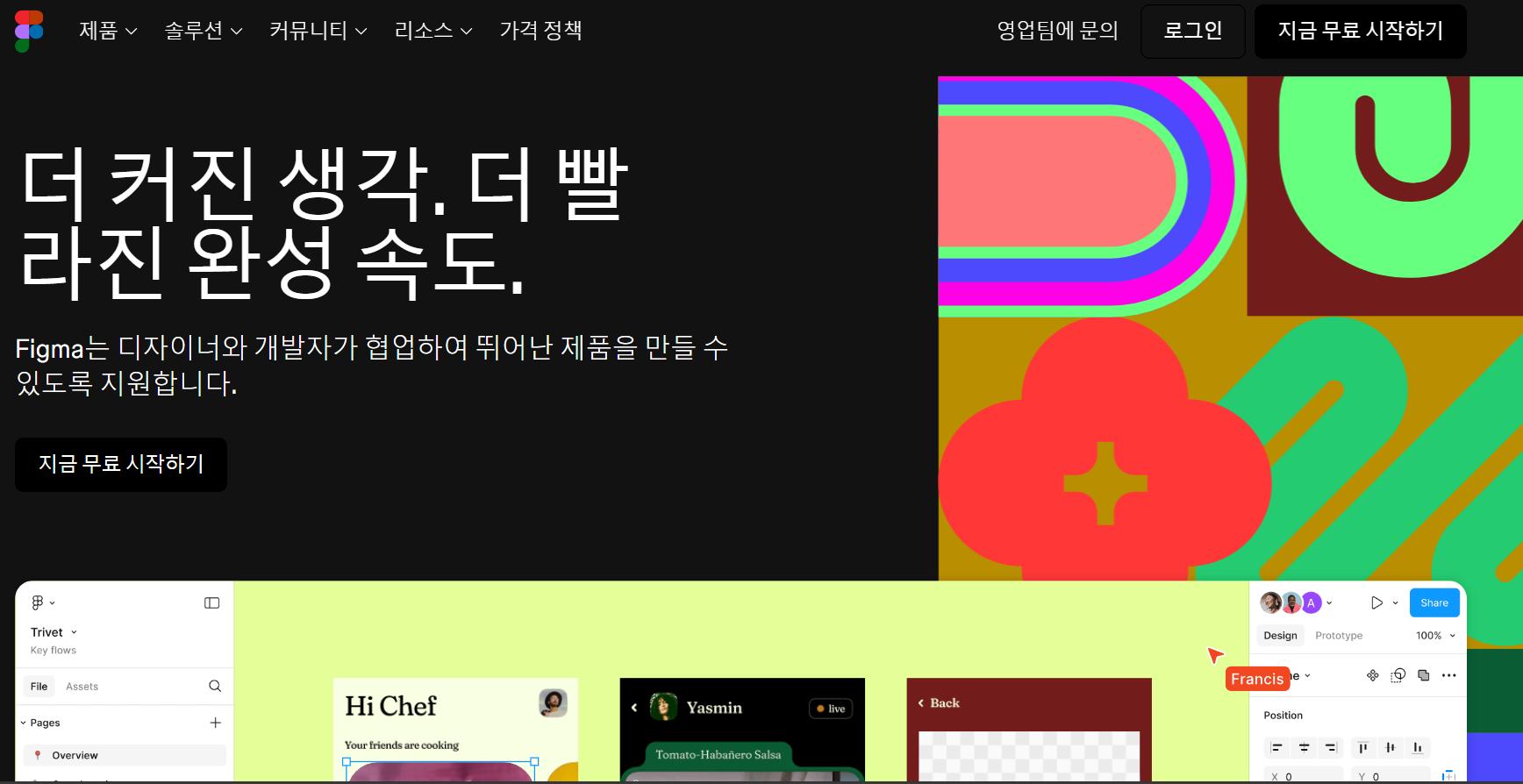
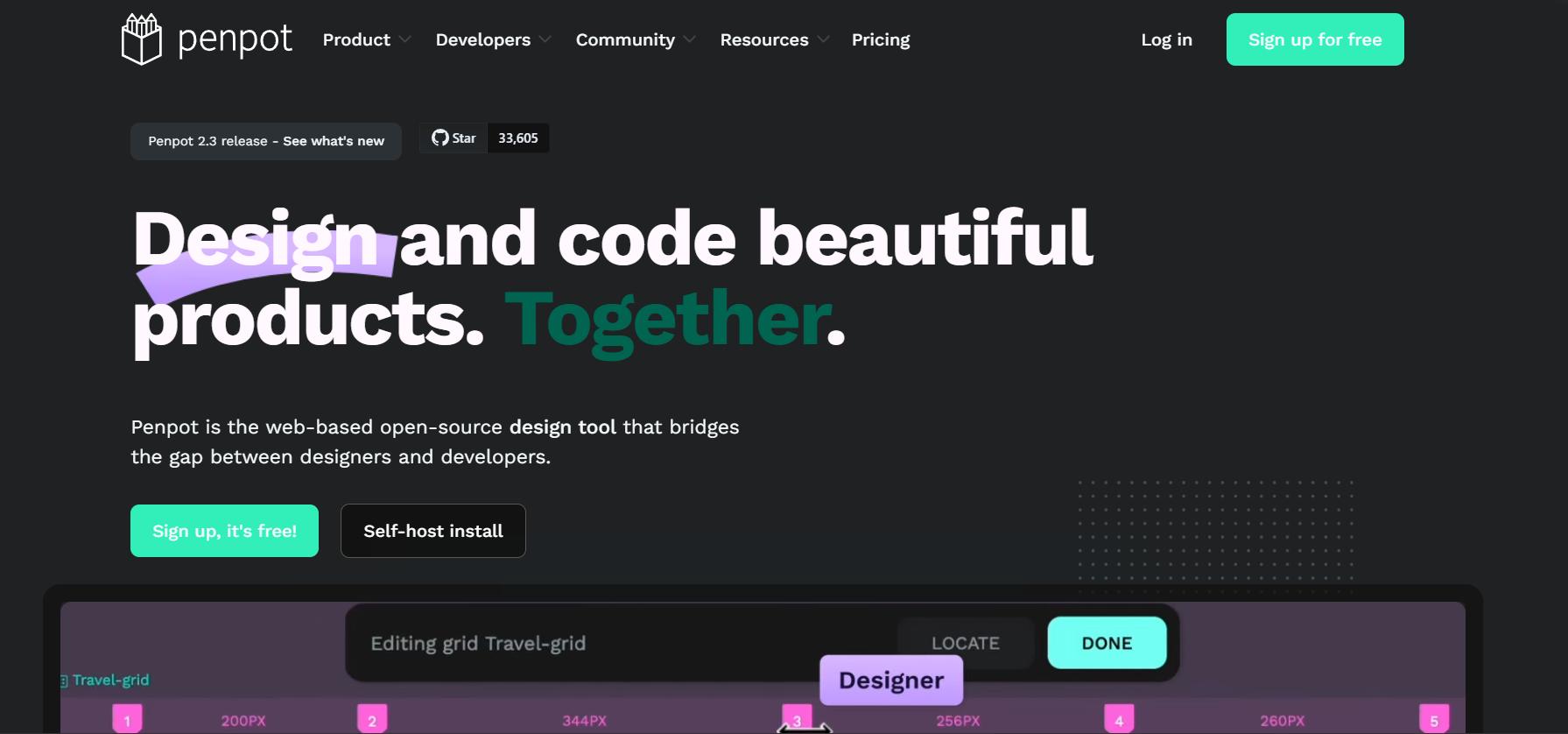
 

image.png.jpg

Figma: 협업을 위한 인터페이스 디자인 도구

image.png.jpg

Penpot: The Design Tool for Design & Code Collaboration 


간단하게 이야기하자면 디자인 툴입니다

뭔가를 개발하면서 디자인을 할 때 협업을 편하게 해주는 서비스라고 보시면 될 거 같습니다


게시글을 보다가 figma 이야기가 있어서 찾아보니 figma는 자체 호스팅이 불가능하고

penpot이라는 오픈소스 프로젝트가 있더라고요


우선 설치는 간단하니까 바로 시작해 봅니다


우선 역방향 프록시 설정을 해줘야 합니다

서버ip:9010 을 역방향 프록시로 설정 해주세요

eg. 192.168.0.2:9010 -> penpot.aaa.com

웹소켓 추가하시고 인증서 지정 후 hsts 켜주시면 됩니다


파일 스테이션 실행 하시고
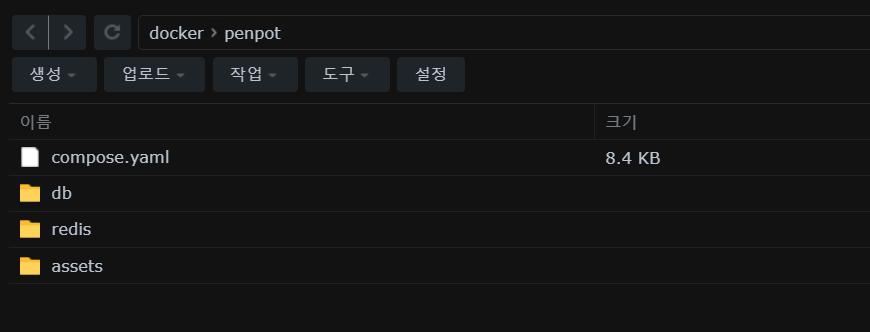
image.png.jpg

/volume1/docke/penpot 폴더에 세 개의 폴더를 생성 해줍니다

  • db
  • redis
  • assets

그 후에 컨테이너 매니저에서 프로젝트 생성을 눌러 주시고
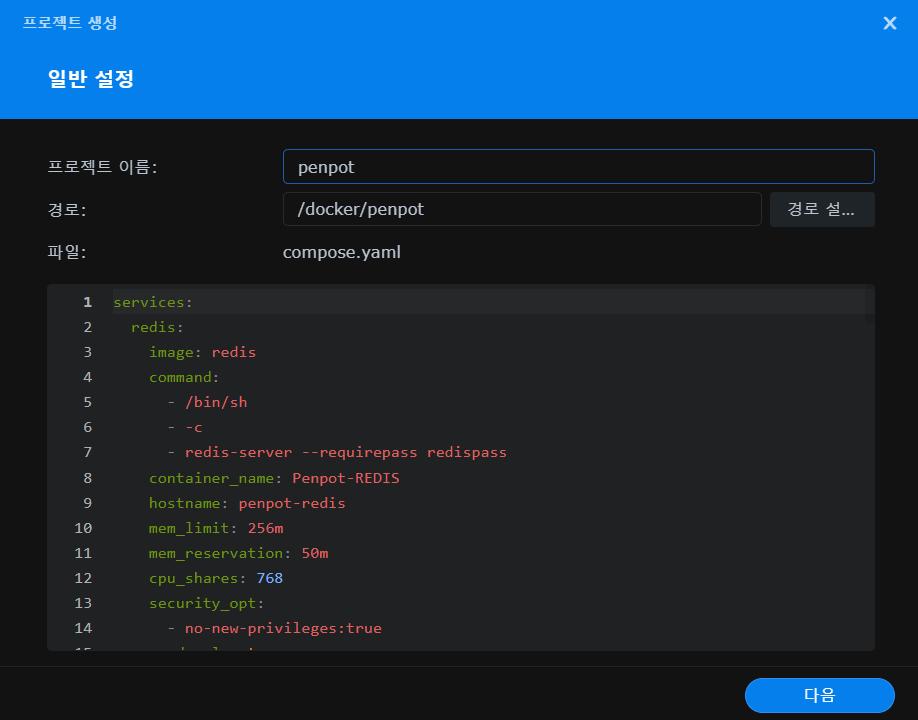


image.png.jpg

/docker/penpot 폴더 지정 해주시고

services:
  redis:
    image: redis
    command:
      - /bin/sh
      - -c
      - redis-server --requirepass redispass
    container_name: Penpot-REDIS
    hostname: penpot-redis
    mem_limit: 256m
    mem_reservation: 50m
    cpu_shares: 768
    security_opt:
      - no-new-privileges:true
    read_only: true
    user: 1026:100
    healthcheck:
      test: ["CMD-SHELL", "redis-cli ping || exit 1"]
    volumes:
      - /volume1/docker/penpot/redis:/data:rw
    environment:
      TZ: Asia/Seoul
    restart: on-failure:5

  db:
    image: postgres:17
    container_name: Penpot-DB
    hostname: penpot-db
    security_opt:
      - no-new-privileges:true
    healthcheck:
      test: ["CMD", "pg_isready", "-q", "-d", "penpot", "-U", "penpotuser"]
      timeout: 45s
      interval: 10s
      retries: 10
    volumes:
      - /volume1/docker/penpot/db:/var/lib/postgresql/data:rw
    environment:
      POSTGRES_DB: penpot
      POSTGRES_USER: penpotuser
      POSTGRES_PASSWORD: penpotpass
      POSTGRES_INITDB_ARGS: --data-checksums
    restart: on-failure:5

  penpot-exporter:
    image: penpotapp/exporter:latest
    container_name: Penpot-EXPORTER
    hostname: penpot-exporter
    mem_limit: 1g
    cpu_shares: 768
    security_opt:
      - no-new-privileges:true
    environment:
      PENPOT_PUBLIC_URI: https://penpot.내 도메인.com
      PENPOT_REDIS_URI: redis://:redispass@penpot-redis/0
    restart: on-failure:5

  penpot-backend:
    image: penpotapp/backend:latest
    container_name: Penpot-BACKEND
    hostname: penpot-backend
    mem_limit: 3g
    cpu_shares: 768
    security_opt:
      - no-new-privileges:true
    volumes:
      - /volume1/docker/penpot/assets:/opt/data/assets:rw
    environment:
      PENPOT_FLAGS: enable-registration enable-login-with-password disable-email-verification enable-prepl-server enable-smtp
      PENPOT_SECRET_KEY: 5qZoBr1PtuOCBATWssP8C3Ippjov33eK
      ## The PREPL host. Mainly used for external programmatic access to penpot backend
      ## (example: admin). By default it listen on `localhost` but if you are going to use
      ## the `admin`, you will need to uncomment this and set the host to `0.0.0.0`.
      # - PENPOT_PREPL_HOST=0.0.0.0
      PENPOT_PUBLIC_URI: https://penpot.내 도메인.com
      PENPOT_DATABASE_URI: postgresql://penpot-db/penpot
      PENPOT_DATABASE_USERNAME: penpotuser
      PENPOT_DATABASE_PASSWORD: penpotpass
      PENPOT_REDIS_URI: redis://:redispass@penpot-redis/0
      PENPOT_ASSETS_STORAGE_BACKEND: assets-fs
      PENPOT_STORAGE_ASSETS_FS_DIRECTORY: /opt/data/assets
      PENPOT_TELEMETRY_ENABLED: false
      PENPOT_SMTP_HOST: smtp.gmail.com
      PENPOT_SMTP_DEFAULT_FROM: Your-own-gmail-address
      PENPOT_SMTP_DEFAULT_REPLY_TO: Your-own-gmail-address
      PENPOT_SMTP_PORT: 587
      PENPOT_SMTP_USERNAME: Your-own-gmail-address
      PENPOT_SMTP_PASSWORD: Your-own-app-password
      PENPOT_SMTP_TLS: true
      PENPOT_SMTP_SSL: false
    restart: on-failure:5
    depends_on:
      redis:
        condition: service_healthy
      db:
        condition: service_healthy

  penpot-frontend:
    image: penpotapp/frontend:latest
    container_name: Penpot-FRONTEND
    hostname: penpot-frontend
    mem_limit: 1g
    cpu_shares: 768
    security_opt:
      - no-new-privileges:true
    ports:
      - 9010:80
    volumes:
      - /volume1/docker/penpot/assets:/opt/data/assets:rw
    environment:
      PENPOT_FLAGS: enable-registration enable-login-with-password
    restart: on-failure:5
    depends_on:
      penpot-backend:
        condition: service_started
      penpot-exporter:
        condition: service_started

쭉 보시다 보면 54번 75번 줄에

PENPOT_PUBLIC_URI: https://penpot.내 도메인.com

코드가 있습니다

역방향 프록시 설정한 주소 입력 해주세요


포트는 우측 포트는 건드리시면 안되고 좌측 9010포트는 안겹치는 포트로 수정 하시면 됩니다만

9010포트가 접속 포트이기 때문에 변경하시면 역방향 프록시도 수정 하셔야 합니다


그 외에 smtp 설정하신 게 있으시다면 설정 값 입력 하시면 됩니다

저는 설정한 게 없어서 그냥 무시했습니다

다 입력 하셨으면 다음다음 생성 누르시면
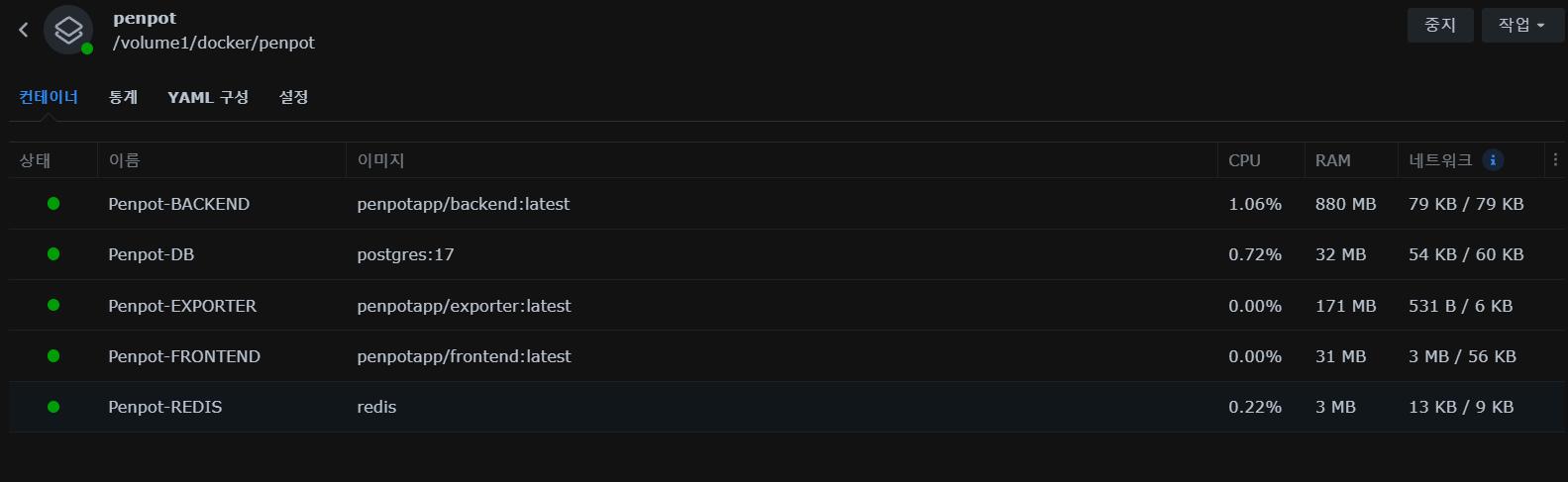


image.png.jpg

다섯 개의 컨테이너가 실행이 됩니다


설정한 역방향 프록시 주소로 접속 하시면
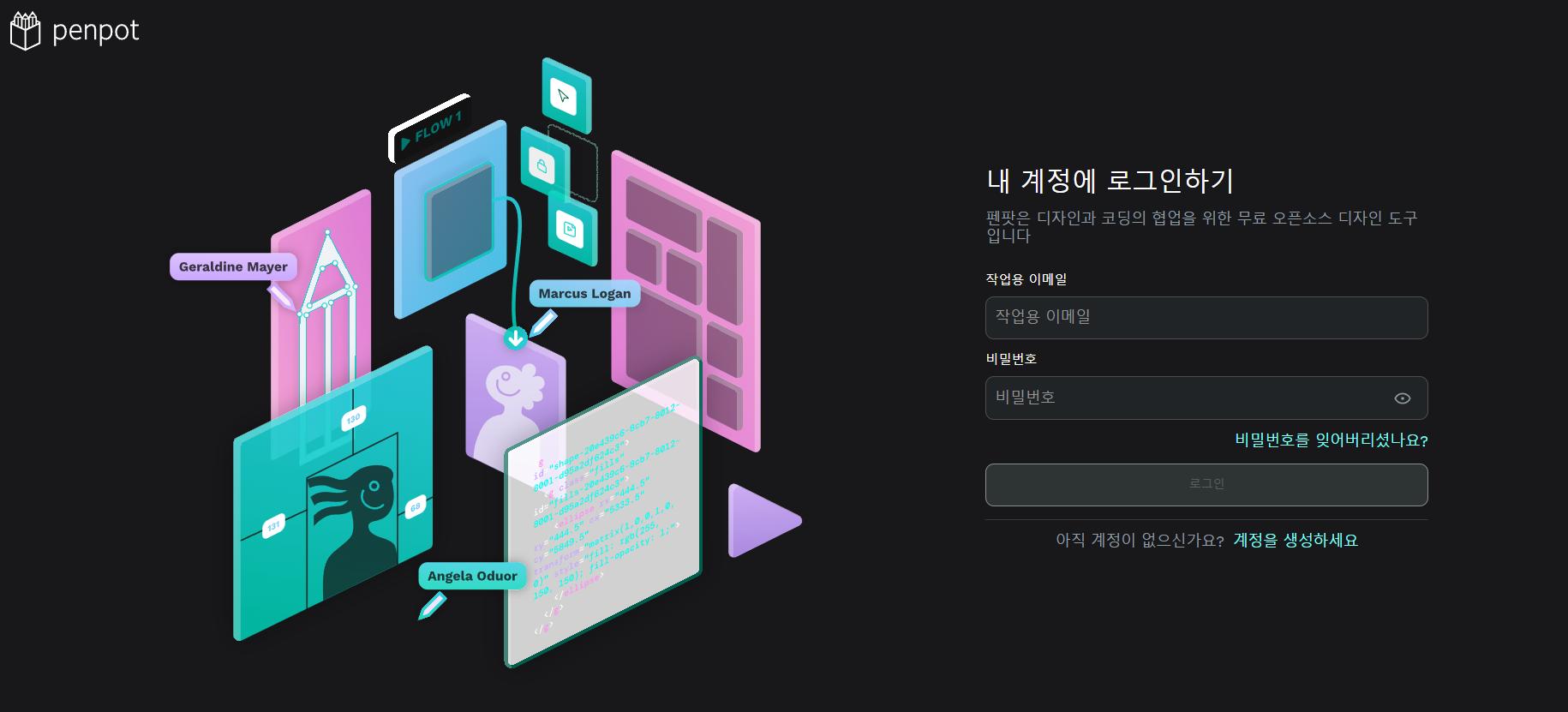
 

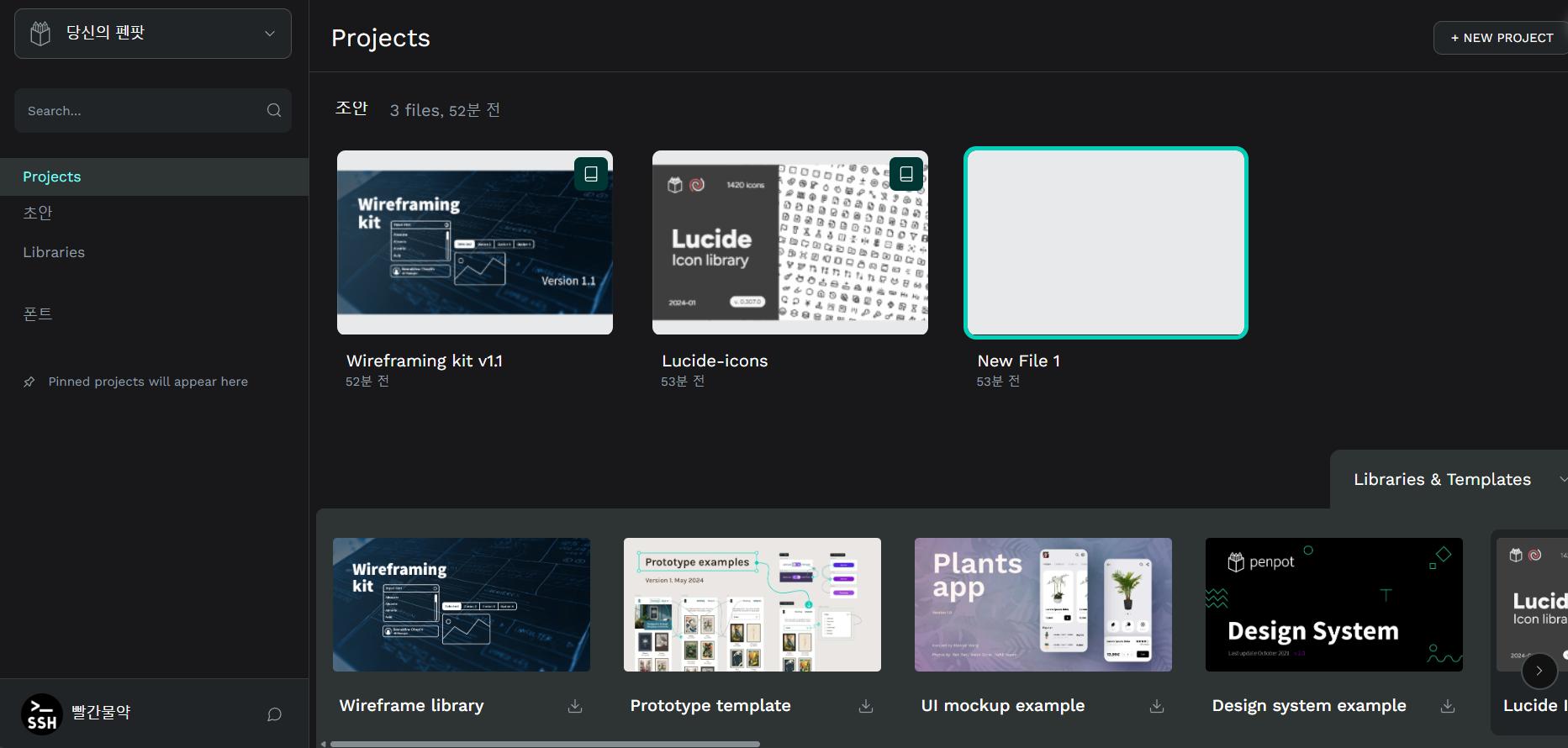
image.png.jpg

로그인 창이 뜹니다

계정을 생성 해주시고 로그인 하시면

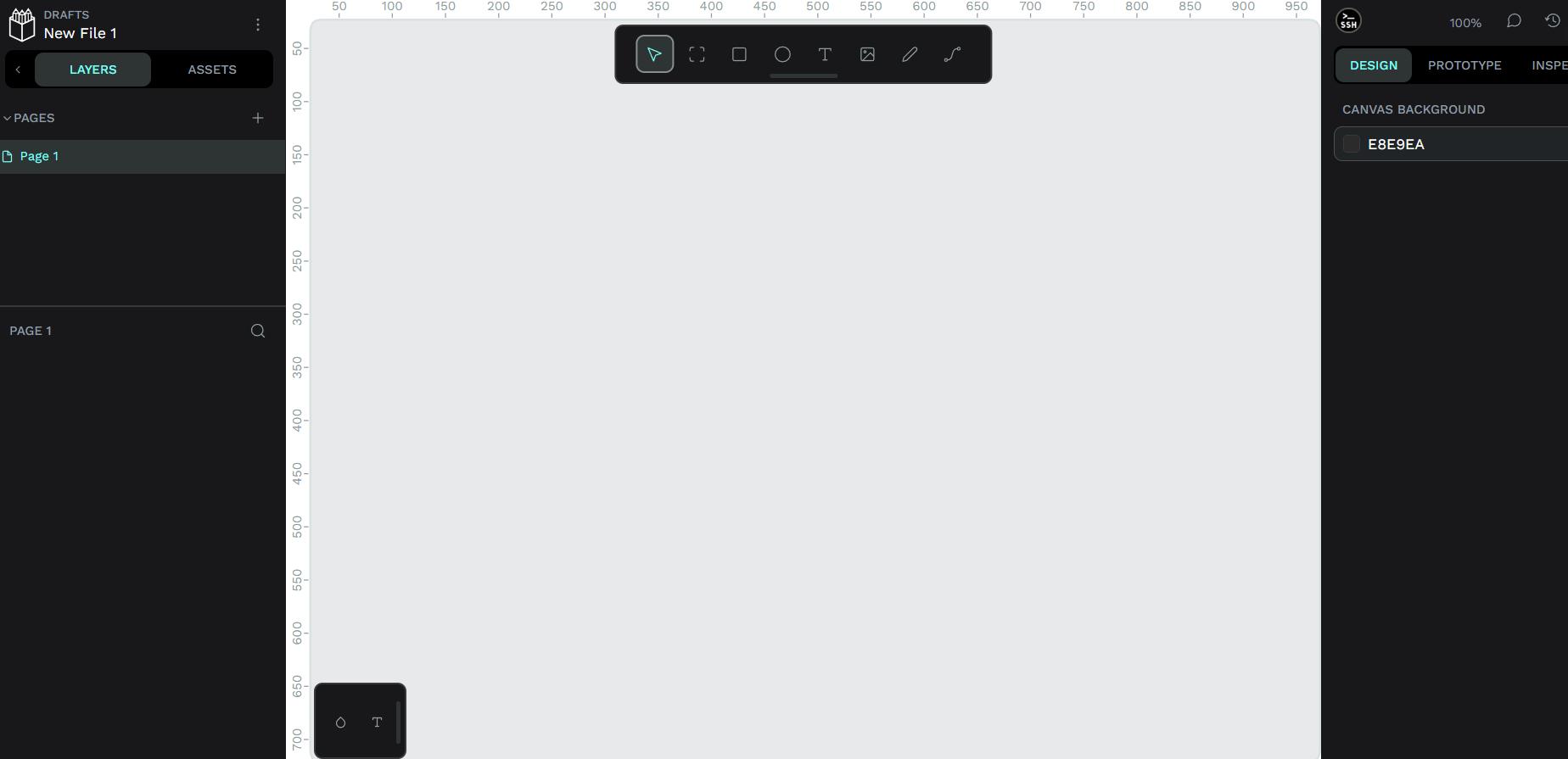
image.png.jpg

image.png.jpg


끝 입니다


penpot 설치가 완료 됐습니다


Penpot: The Design Tool for Design & Code Collaboration

Help center

GitHub – penpot/penpot: Penpot: The open-source design tool for design and code collaboration

자세한 설정이나 사용법등의 내용은 위의 링크들 확인하시면 될 거 같습니다


2. Penpot Configuration

참고로 회원 가입 가능 여부나 설정 추가를 하시려면

기본 설정은 69번, 111번 줄의 

PENPOT_FLAGS: enable-registration enable-login-with-password disable-email-verification enable-prepl-server enable-smtp
PENPOT_FLAGS: enable-registration enable-login-with-password

위의 코드로 설정 돼있습니다

회원 가입을 열어두고 이메일과 패스워드로 로그인 하는 방식이죠


회원 가입을 잠궈두고 CLI로 생성해서 사용하는 방법도 있고

이 외에도 google이나 깃헙, 오픈ID 같은 인증 서비스를 통해서 로그인하는 방식도 설정 할 수 있습니다

댓글 남기기

이메일 주소는 공개되지 않습니다. 필수 항목은 *(으)로 표시합니다